Device Connection Troubleshooting
Bluetooth reliability depends on the phone or computer, browser or app, battery level, distance, and whether another app is already using the device.
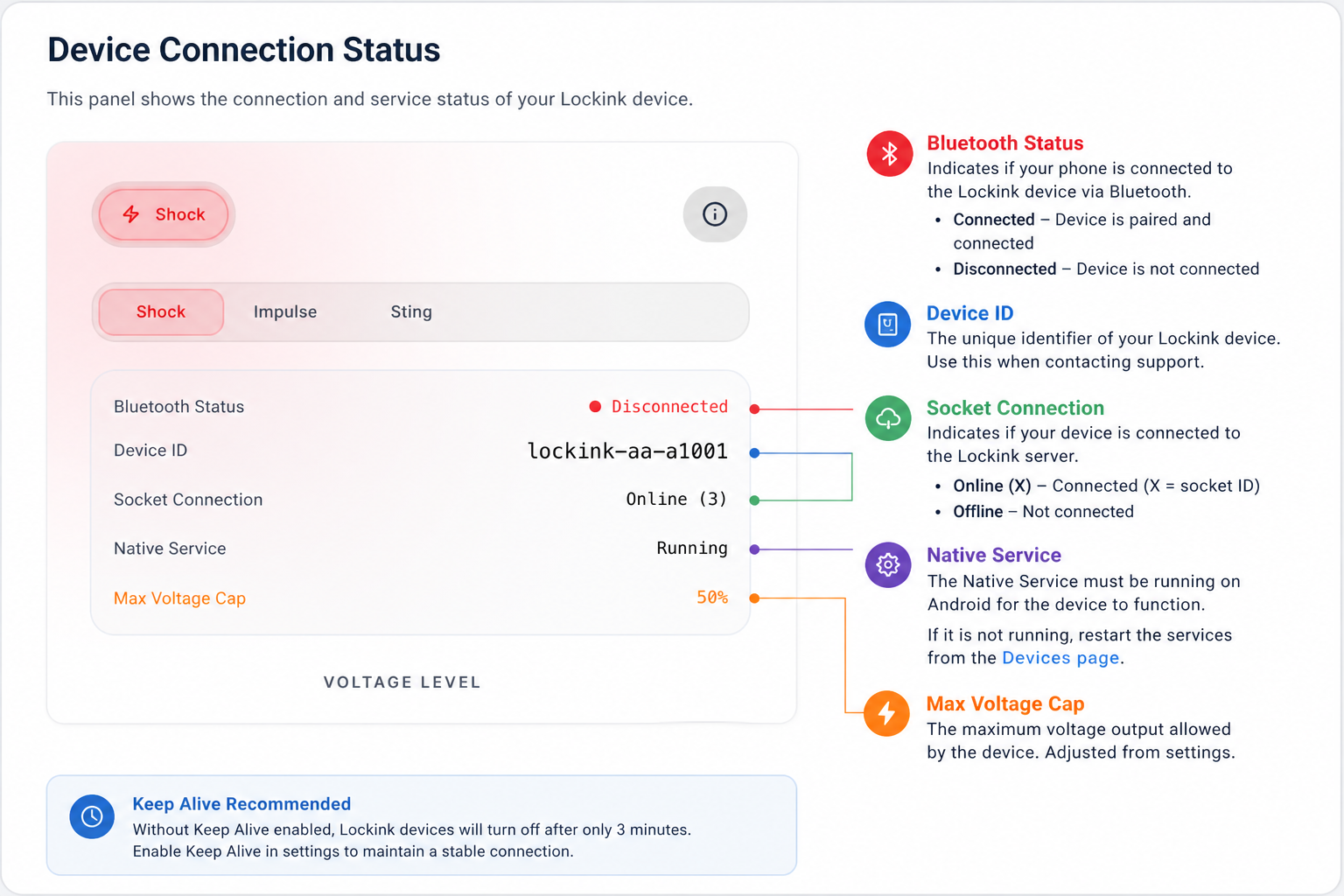
Shock Compatibility
- Keyholder shocks and AI/BOT shocks require the Android app to be installed.
- Only basic shocks are supported remotely in web browsers.
- For web browser shocks, the wearer must have the page open when the keyholder initiates a remote shock.
- SHOCKS WILL STOP WHEN YOU LEAVE THE BROWSER OR CLOSE THE BROWSER.
If a Bluetooth command fails to connect, the device does not appear in the picker, or lock/unlock fails during a command, try the steps below before retrying.
Quick Checks
- Move the phone or computer close to the device.
- Power the device off, then turn it back on.
- Make sure the device has enough battery to move the lock mechanism. A low battery can still show a percentage but fail during lock or unlock.
- Turn Bluetooth off and on again on your phone or computer.
- If the device was just used in another app, fully close that app so it releases the Bluetooth connection.
Android App
For the most reliable Bluetooth control, use the Android app. It can keep a background service running, which browsers cannot do reliably.
If the Android app cannot connect:
- Force-close Chastify and open it again.
- Make sure Bluetooth is enabled.
- Disable battery optimization for Chastify if your phone offers that option.
- Open the mobile menu and check debug logs if Keep Alive or background commands are not working.
- Open View Debug Logs in the menu and press "Auth Test" to see if the native service is running and has contact with the server.
- Restart the phone if Bluetooth keeps failing after force-closing the app.
Web BLE Browser
Web BLE is not a persistent background connection. The browser checks and opens the connection when a command starts.
If Web BLE fails:
- Keep the Chastify tab open and active while the command runs.
- Close the Chastify tab and open it again.
- Restart the browser if the Bluetooth picker does not appear.
- Retry from a fresh button click. Browsers only allow the Bluetooth picker to open from a user gesture.
- Pair the device again from the setup flow if browser permission was lost or browser data was cleared.
- Use Chrome or Edge on Android or desktop. iOS browsers have limited Bluetooth support.
Device Picker Does Not Show the Device
Try this:
- Turn the device off and on again.
- Move it closer to the phone or computer.
- Close the official device app, if it is open.
- Toggle Bluetooth off and on.
- Restart the app or browser.
- Start the setup flow again and pair from there.
Command Starts but Fails
If the command starts but fails during lock or unlock:
- Check battery level first.
- Keep the device awake and nearby.
- Try power-cycling the device.
- Retry once from the command dialog.
- If Web BLE keeps failing, use the Android app for persistent background control.
Moving Between Website and Android App
If a device was first paired in a web browser, Chastify may only have the browser's sandboxed Web Bluetooth ID. That ID can work in the same browser, but the Android app needs the device's real Bluetooth MAC address for native background control.
If the device works on the website but not in the Android app:
- Open the device card in the Android app and use the wrench / Rescan Bluetooth Address option if it is shown.
- For Lockink devices, scan nearby Lockink devices and select the matching device type to update the stored Bluetooth address.
- For QIUI devices, re-run the device setup from the Android app. If Chastify asks for a MAC address, enter the real Bluetooth MAC from the device label, manual, or Android Bluetooth details.
- If there is no rescan option and Android still tries to connect to an address starting with
web-or another non-MAC value, remove the device from Chastify and add it again from the Android app. - Fully close the website, browser tab, and official device app before trying Android again. Another app can hold the Bluetooth connection.
If the device works in the Android app but not on the website:
- Pair it again from the same browser you plan to use.
- Do not clear browser site data after pairing, or the browser may lose its Web Bluetooth permission.
- Keep the Chastify tab open and active during Web BLE commands.
Uninstalling and reinstalling the Android app does not always remove the device record stored on your Chastify account. If the saved address is wrong, you need to rescan/update the address or add the device again.
Still Not Working?
As a last option, try logging out and logging back in again before contacting support.
When to Contact Support
Support chat can only offer limited help with Bluetooth connectivity. Most connection problems are caused by device state, phone Bluetooth state, browser limitations, battery level, distance, or another app holding the connection.
The supported device types have been tested and are working in our test environment, so it is often impossible to diagnose why Bluetooth will not connect on one specific phone, tablet, browser, or device remotely. The cause can be something simple, such as Bluetooth being turned off, Nearby Devices or Bluetooth permissions not being granted, the device being asleep, or another app holding the connection. Without the phone and device in hand, support cannot rule out these local Bluetooth and permission issues.
Contact Support only if you can reproduce a Chastify-specific bug after trying the steps above.