Calendar
Calendar blocks create entries in the wearer's calendar. They run as actions inside an event or function. The toolbox includes both blank blocks and presets with a relative start time; these are the same two block types.
Blocks and inputs
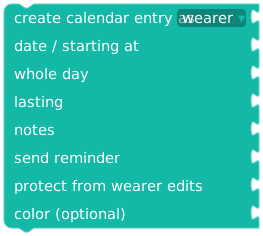
Creates an ordinary calendar entry. Choose wearer or keyholder attribution, title, start, whole-day flag, duration, notes, reminder, write protection, and optional color.
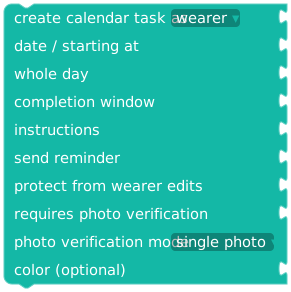
Schedules a task with a title, start, whole-day flag, completion window, instructions, reminder, write protection, optional color, and photo-verification settings.
| Input | What to connect |
|---|---|
| as | Wearer or keyholder. Keyholder attribution requires a shared lock. |
| date / starting at | A date/time value or Unix timestamp in seconds. |
| whole day | True uses the wearer-local date only. The duration/completion window input is then ignored. |
| lasting / completion window | A duration in seconds, preferably supplied by a Duration block. |
| send reminder | True enables a reminder: 10 minutes before a timed entry or at 08:00 local time for an all-day entry. |
| protect from wearer edits | Applies only to keyholder-attributed shared entries/tasks. |
| color | Optional Color value; leaving it empty uses the calendar category color. |
| requires photo verification | Task-only Boolean. If true, choose single photo or before-and-after photos. |
Shared calendar entries require calendar-management permission. Shared calendar tasks require the Task Module. Self-lock calendar tasks remain separate from Task Module points. An all-day task is assigned at 08:00 local time.
Example: a task tomorrow morning
Inside a button or schedule:
create calendar task as wearer
  title: "Morning check-in"
  starting at: timestamp for today + 1 days at hour 9 minute 0, wearer local
  whole day: false
  completion window: duration 1 hour
  instructions: "Complete your morning check-in."
  send reminder: true
  protect from wearer edits: false
  requires photo verification: false
Each execution creates an entry. If this runs from a button, use a cooldown or a variable to prevent unintended duplicates.
Record a task on its submission date
In when task completed or when task photo verification approved, connect event variable → task submission timestamp (Unix seconds) to the calendar start input. This records the original submission date even when approval happens later.
That value is 0 when no verification submission exists. Use an if … then value … else value block to choose it only when greater than zero, otherwise use event timestamp (Unix seconds). Event timestamp describes the completion/approval event; current time describes when the script executes.
This affects the date of the new calendar record, not when rewards take effect, and does not move existing entries. See Calendar Events for calendar behavior outside PLE.