Content Shield
Overview
Content Shield is an Android-only feature that helps protect you from NSFW content across your entire device. It runs entirely on your phone — nothing is ever uploaded or sent anywhere.
Content Shield is under active development. More features are coming soon, including deeper AI/Bot integration.
Requirements
- Android device — Content Shield is not available on iOS or web
- Premium subscription — required for real-time filtering
- Permissions — you'll be asked to grant "Display over other apps" and screen capture permission
- Re-enable after screen off — Android requires you to re-enable the real-time filter each time your screen turns off
Three Protection Modes
Content Shield has three modes. You can use any combination of them.
1. Real-Time Screen Filter
The real-time filter watches your screen and instantly blurs or blocks any NSFW content it detects — across every app on your device, not just Chastify.
This mode uses Android's MediaProjection to capture your screen. Due to Android's security requirements:
- You must grant screen capture permission every time you enable the filter
- The filter is automatically disabled when your phone screen turns off
- You must re-enable it manually each time your screen turns back on
If you are testing on Android and do not want to manually grant MediaProjection permission every time the screen turns on, you can grant it with:
adb shell appops set net.chastify.app PROJECT_MEDIA allow
When turned on, it continuously scans what's on screen and covers detected areas with a mask of your choice:
| Mask Style | How It Looks |
|---|---|
| Solid Black | Fills the area with solid black — best battery life |
| Pixelated | Pixelates the area like a mosaic |
| Blur | Applies a blur effect over the area — slightly more battery usage |
You can also choose which types of content to filter (e.g. exposed body parts vs. covered) and adjust sensitivity between Low, Medium, and High.
Custom overlay text — You can display short words like "BLOCKED" or "PROTECTED" inside the masked areas.
Browser & App Blocking — If the parental control module is enabled, you can choose to block web browsers and the X.com app whenever MediaProjection permission has not been granted (i.e. when the real-time filter is not running). When you open a blocked browser, you'll see a blocking screen that automatically opens the MediaProjection permission prompt. Once you grant permission, the browser app is automatically relaunched.
2. AI App Blocking
Instead of continuously overlaying your screen, this mode periodically checks what's on screen. If it detects NSFW content, it force-closes the app and blocks it for 30 seconds.
Requires Android 11 or newer and the device control accessibility service to be enabled.
This uses less battery than the real-time filter since it only checks periodically rather than continuously. It works across all apps and websites on your device. This can also be enabled remotely by your keyholder.
Separate from Content Filters — AI App Blocking uses a fixed, conservative set of NSFW categories to decide what to block. It does not use your custom Content Filter settings from the real-time filter. This is intentional: since this mode blocks entire apps and websites (not just blurs regions), it stays on the safe side with a strict default list and cannot be customized.
Categories that trigger a block:
| Category | Description |
|---|---|
| Exposed buttocks | Detected bare buttocks |
| Exposed female breasts | Detected bare female chest |
| Exposed male genitalia | Detected bare male genitals |
| Exposed anus | Detected bare anus |
| Exposed female genitalia | Detected bare female genitals |
| Covered female breasts | Detected female chest through clothing |
| Covered buttocks | Detected buttocks through clothing |
| Covered female genitalia | Detected female genital area through clothing |
If AI App Blocking feels too sensitive on your device, contact Support chat — we can help tune the detection threshold for future releases.
3. Family DNS VPN
This mode sets up a local VPN on your device that filters your internet traffic at the DNS level:
- Blocks porn sites — uses a large blocklist of over 1 million adult domains
- Blocks ads & trackers — filters ads and tracking domains
- Forces Google SafeSearch — locks Google search to safe results
DNS filtering does not catch content inside apps that load images/videos directly (like social media feeds). For full protection, use it together with Mode 1 or Mode 2.
Lock during parental control — You can optionally prevent the VPN from being disabled while a parental control session is active.
The stats panel shows you how many DNS queries have been checked and blocked in real time.
Keyholder Controls
Content Shield can be used on your own without parental control, during a self-control lock, or while a keyholder/controller has an active parental control session.
When a keyholder is controlling your device, they can manage the NSFW protection options from their control panel:
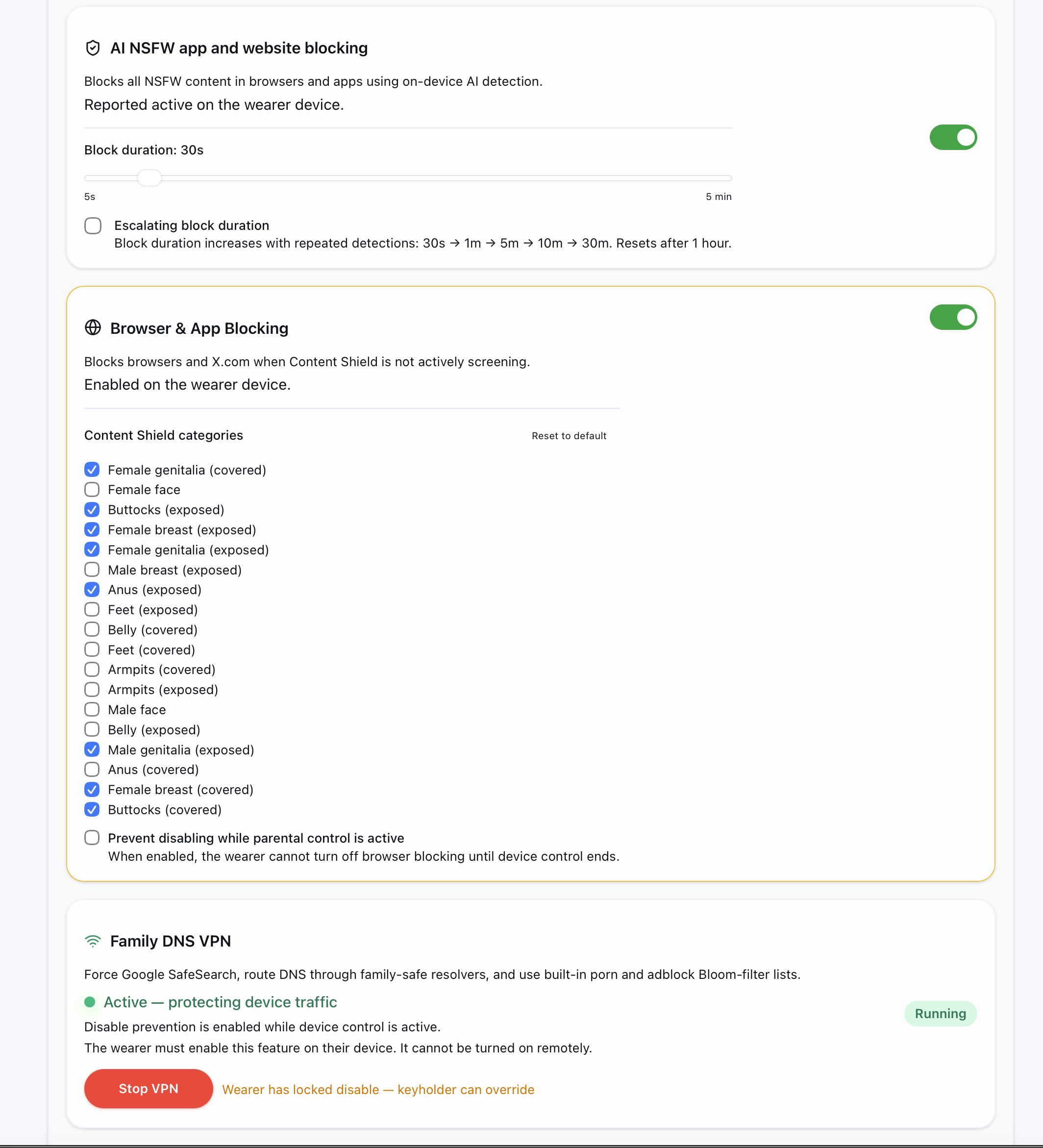
Keyholders can:
- Disable Browser & App Blocking while the control session is active
- Choose which real-time Content Shield categories are filtered when Browser & App Blocking is used
- Enable AI App Blocking remotely
- Enable Family DNS VPN protection
- Turn on lock options that prevent these protections from being disabled until the control session ends
Browser & App Blocking requires wearer consent — this mode depends on Android's MediaProjection permission. Because Android shows a screen-capture permission dialog, the wearer must grant permission when the prompt appears. When Browser & App Blocking is already enabled, browsers and X.com can be blocked whenever the real-time screen filter is not running. Opening a blocked app shows a blocking screen and prompts for MediaProjection permission so the real-time filter can start.
Behavior without a keyholder — your local Content Shield settings remain yours. Server-side parental-control defaults do not turn off standalone Content Shield settings, and self-control locks follow the options you enabled for yourself.
AI App Blocking still uses its fixed conservative category list even when enabled by a keyholder. The custom category choices shown in the keyholder controls apply to the real-time Content Shield filters used with Browser & App Blocking.
Prevent Disabling (Lock Options)
For Browser & App Blocking, AI App Blocking, and Family DNS VPN, you can optionally enable a lock that prevents the feature from being turned off while a parental control or lock session is active.
When the lock is enabled:
- The toggle for that feature becomes disabled and cannot be switched off
- Your filter configuration is also locked (for Browser & App Blocking) — you cannot change which categories are blocked
- The lock stays in effect until the active control session ends
- If you enabled the lock yourself during a self-control session, you cannot undo it until that session ends
This is useful when you want to ensure protection stays active without being able to bypass it mid-session.
Privacy
Everything runs locally on your device:
- All image detection happens on your phone using a built-in AI model — no images are ever uploaded
- Allowed DNS queries are forwarded to Cloudflare Family resolvers, with AdGuard Family as fallback if they don't respond. Google search domains are pinned to SafeSearch on-device.
- VPN — nothing is logged, stored, or transmitted off your device
- No browsing history, screenshots, or personal data leaves your device
Tips
- Best battery life: Use Solid Black mask style + AI App Blocking instead of real-time filtering
- Re-enable after screen off: The real-time filter needs to be turned back on each time your screen turns off — this is an Android limitation